Showing posts with label Productivity. Show all posts

Thursday, October 13, 2011

Calendar App in iOS 5 - Followup Round 1

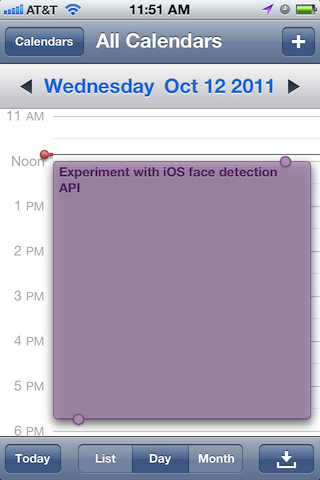
"What's that?" you said. Yup, remember the Week view we saw in earlier post? Turns out, even when your device is in portrait mode, you can go to the adjacent dates just by swiping left or right. That's right, just like how you navigate pages of apps on the home screen. Should've thought of that long ago, Apple. Just saying.

By the way, when you move an event by touch (see previous post), you can move to adjacent dates by dragging the event to the left or right edge of the screen. Again, similar to how you move an app icon across pages on the home screen.

Have fun!

Calendar App in iOS 5

The Calendar app in iOS5 is shipped with some new and useful tricks that is going to make your schedule making a little more touchy-feely.

The Long-Press Gesture

Up until iOS4, the only way to add a Calendar event is to tap the "+" button on the top right corner in the app.

New in iOS5, when in Day view, you can long-press anywhere with open slots, and a new event will appear on the screen right beneath your finger. Nifty. The new event will be hovering on the screen, following your finger wherever it goes until you let go of the touch, allowing you to place it on the time slot you desire.


Creating a new event by long-pressing the screen.

If you long-press an existing event, that event will also appear to be hovering, making it easy to move an event by touch.


Moving an existing event by touching.

Changing Event Duration

After lifting your finger from the long-press gesture, you will see two little circles attached to the event, one on top, and another below. These circles are the handles for you to change the duration of an event: dragging the top circle changes the start time, and the bottom circle the end time.


Changing duration by touching.

Week view in iPhone

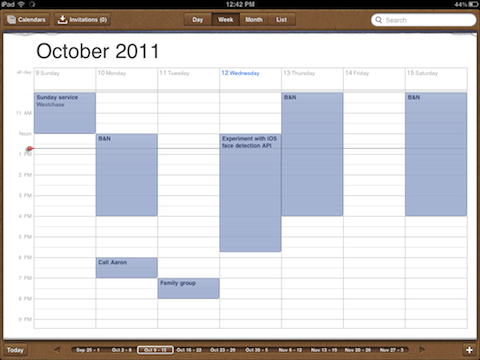
Thanks to a larger-size screen, iPad's Calendar App has always have a Week view. In iOS5, iPhone gains the similar capability, finally.
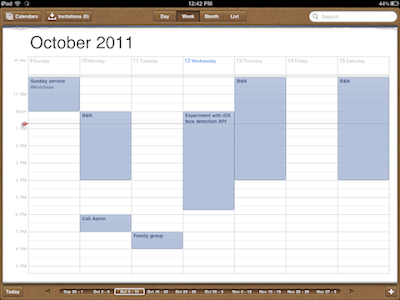

Week View on iPad.
If you hold your iPhone in the landscape position, you will see a brand new view with multiple days going across, and the hours of each day going downwards. You can pan the view sideway or vertically by touching, no surprise there. Other than presenting your schedule in a whole new perspective, the aforementioned tricks still apply here, meaning you can move a event to a different day just by long-pressing and sliding your finger. This is by far my most favorite new trick on the iOS5 Calendar App.

Week View on iPhone.

Update

More tricks have been discovered:

Saturday, April 26, 2008

Note-taking in Preview 1: The Highlighter

We all do a little article research once a while. Whether you found the articles from online journals or through the course reserves in your college library, chances are, they come in PDF format. If you are like me, you wouldn't care to print the articles out; reading them in Preview does it, thank you very much.

When reading on paper, we like to make the black-and-white printouts a little more exiting by highlighting and note-taking at the side. Well, we can do just that in Preview.

In this series, I will share a couple of tips on article reading using Preview, starting with the virtual highlighter.

Text Highlighter in Preview


Let's say you have your text PDF file opened in Preview. Here are the steps to mark up a snippet of the text:

  1. Use your cursor to select(highlight) the text snippet.

  2. Look for the "Mark Up" function in the toolbar or under "Tools" in the menu bar.

  3. If you want the mark up to stay permanent, remember to re-save the PDF document.


That's it!

Use Different Colors


If you don't like the default color Preview assumes, or you like to use multiple colors just like you have many different highlighters in the physical world, you will love the color palette.


Goto Tools in the menu bar, and select "Show Colors". The color palette will show up on screen. I like to keep the color palette open side-by-side with the article I am reading, since I like change the mark up colors all the time. It is super handy!

That's it folks, more tips on Preview are on the way. Stay tuned!


Yet another Mac Tips is on the web!