Showing posts with label Security. Show all posts

Wednesday, October 18, 2006

Better Privacy with Firefox

For the privacy-aware Internet users, Safari's Private Browsing is great. But it has a major downside: you cannot set it as system default, meaning you need to activate it every time you think NOT saving private data is crucial.

If you really need that kind of privacy and find Safari's implementation tedious, then forget about Safari altogether. Try Firefox instead.

Protect Private Data Using Firefox

In Firefox, you can set it to clear your private data each time you close Firefox. If you haven't got one installed, you can get it from the Firefox website.

Open Firefox, choose Preference.

In the "Privacy" Tab, click the "Settings" button at the bottom-right corner.

Then comes a new dialog box, in which you can choose what types of private data you feel compelled to clear. For convenience, check the box "Clear Private data when closing Firefox", and stop worrying from now on!

Disclaimer: The dialog boxes of Firefox Preference are copyrights of Mozilla Foundation. They are displayed solely for the purpose of public education.

Yet another Mac tip is on the web!

Thursday, June 22, 2006

Safeguard Your Sensitive Data - Encrypted Disk Image

It is important to know that without encrypting your important files, they are easily obtainable by others who have access to your computer (e.g. when your laptop is stolen); and no, requiring password log-in to your user account does not protect your files from being pried open.

Fortunately, it is very easy to create an encrypted disk image in Mac OS X, which can be mounted to your system when you need it (think USB drive). When dismounted, it becomes just another file on your desktop. But it is strongly encrypted (meaning jumbled up with random data) such that others who obtain this file have no way to read what is inside, and your sensitive data are safe.

Creating an encrypted disk image

First, fire up the Disk Utility.
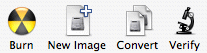
In Disk Utility, choose "New Image".
A dialog appears to let you customize the new image. Give it a name and a location to store on your harddisk. You must remember to choose "AES-128" in the Encryption option.
After you click "Create", another dialog will appear for you to create a password to protect the encrypted disk image. For good security, uncheck the "Remember password (store in Keychian)" option so that you leave no trace of your password in your computer. Give it a strong password that is hard to guess, then click 'OK'.

Using the encryted disk image


That's all you need to do! Now your new encrypted disk image is ready for use. Just double-click the disk image file, and after you typing in the password, it will be mounted to your system just like a removable drive.


Yet another Mac tip is on the web!

Tuesday, March 07, 2006

Safari's Hole Patched

Apple has responded to the security hole in Safari reported a few weeks ago by releasing a security update, formally Security Update 2006-001 Mac OS X 10.4.5 (PPC).

Problem solved

After updating the system, I found that the aforementioned vulnerability in Safari is gone. Now the download manager is able to decipher the altered script files and warn that the package may contain an application. Since you know you are downloading a media file, this warning is enough to raise your alert that something fishy is going on.

The turnaround time of the fix is fast enough, which is a good sign that Apple is taking Mac security seriously. If your system has not been patched, you can download and install the update using the Mac's built-in Software Update, or get it from this link.

What about Panther

Fear not, Panther users, for you are not neglected. Apple has also addressed this problem in Panther by releasing a 10.3.9 security update, which can be downloaded here: http://docs.info.apple.com/article.html?artnum=303382.


Yet another Mac tips is on the web!

Friday, February 24, 2006

Major Vulnerability in Safari

Michael Lehn, a PhD student in Denmark, has discovered a security hole in Safari that every Mac user should be cautioned about. As of writing, Apple Computer Inc. has yet released a patch. It did release 10.4.5, the latest upgrade of its Mac OSX, slightly before the vulnerability was made public. But after installing on my machine the vulnerability still persists.

Are you safe?

To allow Mac users find out whether their machines are safe, Secunia, a security company, has provided a test on its website http://secunia.com/advisories/18963.

Before running the test, you will need to set your Safari to open 'Safe' files automatically. You can locate the settings at Safari->Preference.

Follow the instructions on the website on where to click in order to download a file which is seen as 'safe' by Safari. The goal is to test whether the file will be opened automatically, which it shouldn't. Upon opening the file it runs a benign script that attempts to launch the Calculator app. When the calculator pops up, you are NOT safe.

A look inside the hole

'Safe' files in Safari include movies, pictures, audio, PDF, archives etc. One might argue that opening these files automatically is a convenient feature, but it is always a bad feature in terms of security.

The test provided by Secunia demonstrates that a hacker can decorate malicious shell scripts to look like 'safe' files. Keep in mind that the UNIX shell scripting is a very powerful tool, capable of performing a lot of admin-level exercise on the computer, so you really don't want some jokers to run scripts as will on your machine.

Prevention is better than cure

Apple is working on 10.4.6 now. I believe they will patch this hole with the release. That said, opening downloaded files automatically is always a bad idea. To stop this kind of threat once and for all, you should turn off the option.

Final note

Always accept files only from sources you can trust, and do not open suspicious files simply out of curiosity! This way you will save yourself from many troubles!


Yet another Mac tips is on the web!

Sunday, October 09, 2005

Make Your Mac Invisible

Last week's topic on 'private browsing' using Safari was a piece of cake. This week we will talk about something more advanced, something called 'stealth mode'. Again, this is an Tiger-only feature.

Like all things Apple, this advanced option is just as easy to set up.
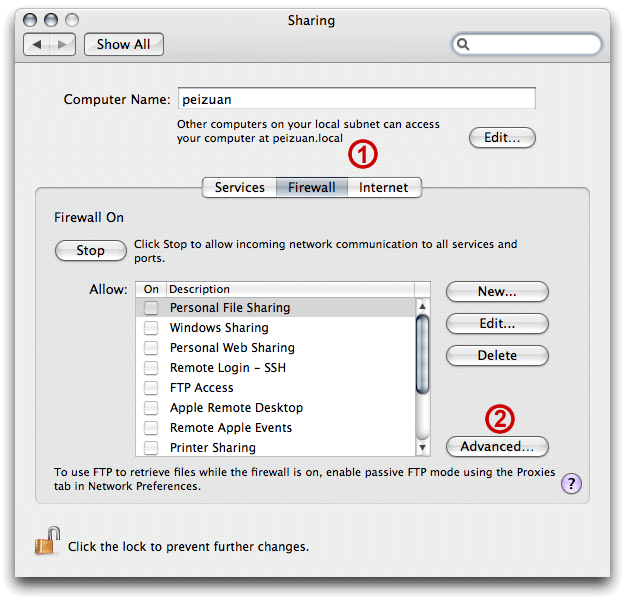
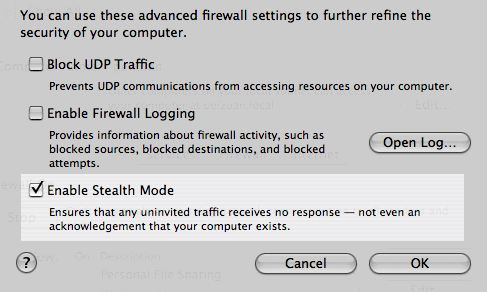
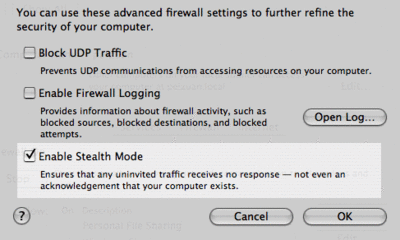
1. Open 'System Preference'.2.Choose 'Sharing'.3. In 'Sharing', click the 'Firewall' tab, then look for the 'Advanced...' button at bottom-right corner.4. Clicking on the 'Advanced...' button will pull down a page with more options. Check the box for 'Enable Stealth Mode', and you are done!
Stealth? As in Invisible?

That's right. With your Mac running in 'stealth mode', it will turn down any 'ping' or 'port scan' request from outside, so bad guys (and everybody else) just do not know you exist at all! Nifty, huh?

It's geeky, but what is 'ping' and 'port scan' anyway? Well, they are very legitimate network tools that every computer science student should know. Together, they can be used to find out whether your Mac is on a particular network, and whether you leave any doors wide-opened for bytes to sneak in. System crackers (casually known as 'hackers') usually start their attacks by pinging and port-scanning your computer. Once they plant some secretive codes inside your computer and make them run, your machine will become their faithful servant, not yours. I've seen it in action before.

For an outsider to run foreign codes on your Mac is tough, much tougher than on Windows. But if the code is bad-intentioned enough, or if you are careless enough, it could still happen. By setting up the 'stealth mode', you can avoid most casual attacks by being 'invisible'.

Fortify your network

This is beside the point, but have you also secured the wireless router in your home or small office network? Even if your Mac is in stealth mode on the network, you computer is still listed in the router's client table. So if your router is taken over, bad guys can still find you. So please, folks, crank up your router's security! (stop broadcasting SSID, setup MAC address filtering, firewall ... usual procedures, ya'know)

Yet another Mac tip is on the web!

Saturday, October 01, 2005

Private Browsing with Safari Web Browser

Safari logo
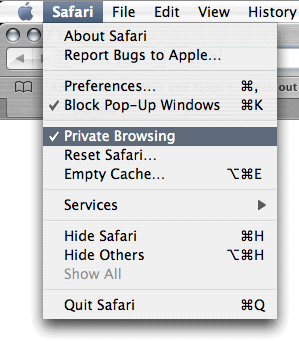
Safari 2.0, Apple's own web browser, now offers a function called 'private browsing'. You can easily locate it at the menu bar.

Select Private Browsing on Safari menu

Background check

Web browsers typically record all sorts of information regarding your web-surfing activities. The most common one is the 'history', which stores all the URLs that you have visited. Next is the so-called 'cookie', in which some websites leave markings for all kinds of purposes like identifying you as returning visitor or providing customized page responds. The third one is the 'cache', which stores web elements like html files and images on your disk. The purpose of the cache is to fake an impression of faster loading the next time you visit the same site, as some bytes are already on your computer.

What's the offer?

Okay, no more geek's talk. What you really need to know is that when you activate 'private browsing', Safari leaves NON of these trails on your computer. It makes sense in terms of personal security because many phishing attempts, whether to steal your precious identity or just to monitor what you do on the internet, are accomplished by sniffing through the cookie and cache. This feature also makes it impossible for people in-the-know to walk through your computer and obtain sensitive data like your online banking user ID.

Does that mean no one is watching?

If you are fancied with the idea that by not leaving any trail you are free to do anything without bearing the consequences, you should quit thinking that way now. Private browsing is NOT a tool for you to bypass the law, because whatever you do is still traceable by your internet service provider. It is only a tool that prevents malicious codes and people to steal your identity and privacy. You can also disable this option by means of Parental Control when you setup less-privileged account on your Mac.

Yet another Mac tip is on the web!