Showing posts with label Safari. Show all posts

Tuesday, March 07, 2006

Safari's Hole Patched

Apple has responded to the security hole in Safari reported a few weeks ago by releasing a security update, formally Security Update 2006-001 Mac OS X 10.4.5 (PPC).

Problem solved

After updating the system, I found that the aforementioned vulnerability in Safari is gone. Now the download manager is able to decipher the altered script files and warn that the package may contain an application. Since you know you are downloading a media file, this warning is enough to raise your alert that something fishy is going on.

The turnaround time of the fix is fast enough, which is a good sign that Apple is taking Mac security seriously. If your system has not been patched, you can download and install the update using the Mac's built-in Software Update, or get it from this link.

What about Panther

Fear not, Panther users, for you are not neglected. Apple has also addressed this problem in Panther by releasing a 10.3.9 security update, which can be downloaded here: http://docs.info.apple.com/article.html?artnum=303382.


Yet another Mac tips is on the web!

Friday, February 24, 2006

Major Vulnerability in Safari

Michael Lehn, a PhD student in Denmark, has discovered a security hole in Safari that every Mac user should be cautioned about. As of writing, Apple Computer Inc. has yet released a patch. It did release 10.4.5, the latest upgrade of its Mac OSX, slightly before the vulnerability was made public. But after installing on my machine the vulnerability still persists.

Are you safe?

To allow Mac users find out whether their machines are safe, Secunia, a security company, has provided a test on its website http://secunia.com/advisories/18963.

Before running the test, you will need to set your Safari to open 'Safe' files automatically. You can locate the settings at Safari->Preference.
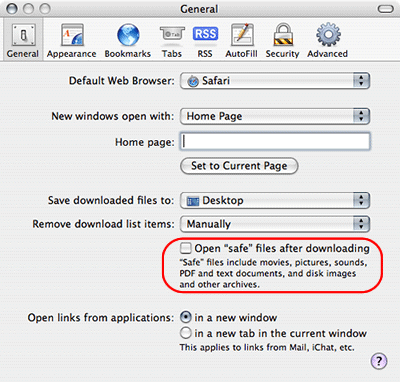
Follow the instructions on the website on where to click in order to download a file which is seen as 'safe' by Safari. The goal is to test whether the file will be opened automatically, which it shouldn't. Upon opening the file it runs a benign script that attempts to launch the Calculator app. When the calculator pops up, you are NOT safe.

A look inside the hole

'Safe' files in Safari include movies, pictures, audio, PDF, archives etc. One might argue that opening these files automatically is a convenient feature, but it is always a bad feature in terms of security.

The test provided by Secunia demonstrates that a hacker can decorate malicious shell scripts to look like 'safe' files. Keep in mind that the UNIX shell scripting is a very powerful tool, capable of performing a lot of admin-level exercise on the computer, so you really don't want some jokers to run scripts as will on your machine.

Prevention is better than cure

Apple is working on 10.4.6 now. I believe they will patch this hole with the release. That said, opening downloaded files automatically is always a bad idea. To stop this kind of threat once and for all, you should turn off the option.

Final note

Always accept files only from sources you can trust, and do not open suspicious files simply out of curiosity! This way you will save yourself from many troubles!


Yet another Mac tips is on the web!

Tuesday, November 15, 2005

Instant RSS with Safari 2.0

RSS as news aggregator

The header of this paragraph basically says it all. Some big-time executives and politicians don't read news directly off the newspaper, website or TV. Rather, they have their news secretaries gather the news articles and format them nicely on clean pages. Taking the real-world analogy to the digital world, RSS (Really Simple Syndication) is the news secretary for you and me.

RSS out-of-the-box

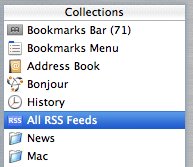
Even if you have not used RSS before, chances are that your Tiger is shipped with tons of feed together with Safari 2.0 (aka Safari RSS). First, open the bookmark page, and find your "All RSS Feeds" bookmark at the sidebar.
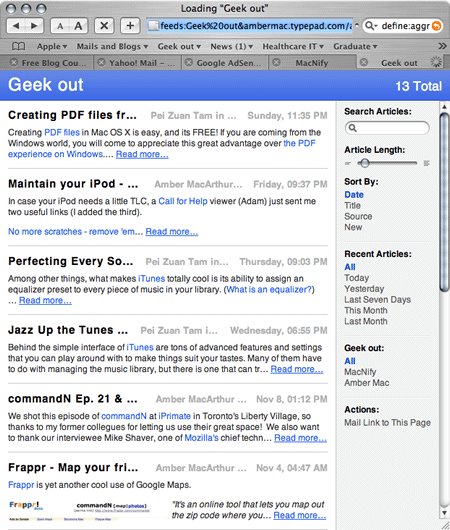
On the right hand side are all the RSS feeds that your Safari has subscribed to. Click on one of them to see what's inside. I choose the CNN feed, and up comes the news titles from CNN presented in a clean list. If you click on any news title, it will bring you right to the corresponding news article on CNN's website. Notice the blue-colored "RSS" at the right hand side of the address bar? If you click on it, it will take you to CNN's homepage.

Adding new RSS feeds

I'll use MacNify's RSS feed as an example of adding new feed to Safari.

  1. If you are on MacNify now (duh~), notice the "RSS" icon at the address bar? Unlike the previous one we saw, this one has a blue background. Safari 2.0 has a nice feature of auto-discovering the availability of RSS feed on the site that you are visiting. If RSS feed is found, this icon will appear. Clicking on it will open the feed in the browser.

  2. It is important to note that clicking on the "RSS" icon does not automatically subscribe to the feed for you. To subscribe to a feed, you need to bookmark the feed URL. For example, I drag MacNify's feed URL to a group called "Geek Out" on the Bookmark Bar. That's basically all you need to do to "subscribe" to a feed.
    Note: I also added a feed from Amber Mac to the same group. If I click the "View All RSS Articles" under the group's menu, RSS feeds from both MacNify and Amber Mac will be displayed together in a single page.

  3. One great thing about Safari's RSS implementation is the set of filtering options found in the sidebar at the right hand side of the RSS page. You can adjust the article length, sort them by different attributes, or search through thousands of RSS articles using the Search box.

Summary

In my opinion, Safari has one of the best browser-based implementation of RSS in town. The auto-discovery feature truly brings RSS from the geekosphere to the rest of us in the most Apple-ish way!

Yet another Mac tips is on the web!

Saturday, October 01, 2005

Private Browsing with Safari Web Browser

Safari logo
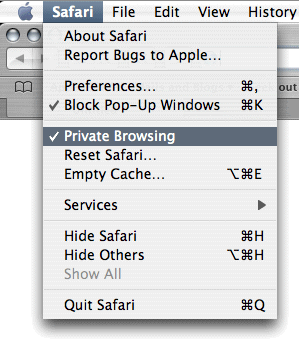
Safari 2.0, Apple's own web browser, now offers a function called 'private browsing'. You can easily locate it at the menu bar.

Select Private Browsing on Safari menu

Background check

Web browsers typically record all sorts of information regarding your web-surfing activities. The most common one is the 'history', which stores all the URLs that you have visited. Next is the so-called 'cookie', in which some websites leave markings for all kinds of purposes like identifying you as returning visitor or providing customized page responds. The third one is the 'cache', which stores web elements like html files and images on your disk. The purpose of the cache is to fake an impression of faster loading the next time you visit the same site, as some bytes are already on your computer.

What's the offer?

Okay, no more geek's talk. What you really need to know is that when you activate 'private browsing', Safari leaves NON of these trails on your computer. It makes sense in terms of personal security because many phishing attempts, whether to steal your precious identity or just to monitor what you do on the internet, are accomplished by sniffing through the cookie and cache. This feature also makes it impossible for people in-the-know to walk through your computer and obtain sensitive data like your online banking user ID.

Does that mean no one is watching?

If you are fancied with the idea that by not leaving any trail you are free to do anything without bearing the consequences, you should quit thinking that way now. Private browsing is NOT a tool for you to bypass the law, because whatever you do is still traceable by your internet service provider. It is only a tool that prevents malicious codes and people to steal your identity and privacy. You can also disable this option by means of Parental Control when you setup less-privileged account on your Mac.

Yet another Mac tip is on the web!