Showing posts with label iOS5. Show all posts

Sunday, October 16, 2011

Siri is a Great One Liner

When it comes to 2-way communication, Siri is quite limited. Before I go further on this allegation, let me make myself clear that I think Siri's natural language parsing is by no means a small achievement.

Seeing it in action

I spent a little time with Siri today and made this video to share:

Overall, Siri is very good at understanding natural English, to the point that you have nearly no need to learn any syntax to operate it. However, there are still some rules you need to be aware of. By and large, your day-to-day plain English, like "what are the Indian restaurants around here", or "find me an Indian restaurant", or any other ways of expressing this idea, can be handled quite comfortably by Siri, most of the time. Sometimes, you need to repeat yourself. Not a big problem.

But when it comes to a series of back-and-forth between you and the device, Siri can get a little stubborn. As you can see in the video, I asked "When is Christmas" and Siri answered perfectly. Impressive. But when I followed up with the request to "set an appointment on that day", Siri failed to associate Christmas with "that day" as a human being would.

In my test, had I say "set up an appointment on Christmas day" instead of "that day", Siri would have understood me perfectly. We human beings work mostly with implicit meanings in conversations; otherwise we would be a verbose bunch. With Siri, that assumption falls apart. To avoid yelling at Siri for being stupid, you need to start practicing forming complete, self-containing sentences today. Yikes! To some, that's more daunting that typing in an appointment.

Fair assessment

Having tried Siri, I must say, as long as you make your statement clear, you can say it however you want and Siri can understand you perfectly. Using Nuance technology, the voice to text conversion is mostly flawless too.

Where Scott Forstall tried to sell the idea of Siri "following along the conversation just like a human being does", I think it is mostly not true. To be fair, that type of conversation is NOT the intended use of Siri anyway, as that capability represents true AI that we human has yet to grasp. Looking at Siri's behavior now, it is safe to say that we have a long way to go before Siri can talk to us like Jarvis to Tony Stark.

Thursday, October 13, 2011

Calendar App in iOS 5 - Followup Round 1

"What's that?" you said. Yup, remember the Week view we saw in earlier post? Turns out, even when your device is in portrait mode, you can go to the adjacent dates just by swiping left or right. That's right, just like how you navigate pages of apps on the home screen. Should've thought of that long ago, Apple. Just saying.

By the way, when you move an event by touch (see previous post), you can move to adjacent dates by dragging the event to the left or right edge of the screen. Again, similar to how you move an app icon across pages on the home screen.

Have fun!

Calendar App in iOS 5

The Calendar app in iOS5 is shipped with some new and useful tricks that is going to make your schedule making a little more touchy-feely.

The Long-Press Gesture

Up until iOS4, the only way to add a Calendar event is to tap the "+" button on the top right corner in the app.

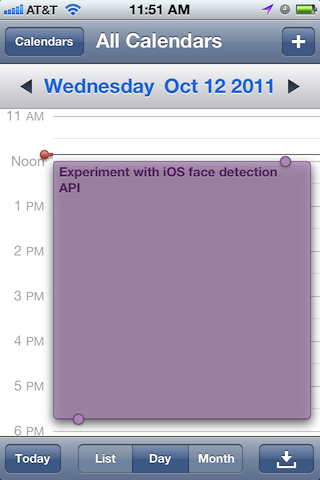
New in iOS5, when in Day view, you can long-press anywhere with open slots, and a new event will appear on the screen right beneath your finger. Nifty. The new event will be hovering on the screen, following your finger wherever it goes until you let go of the touch, allowing you to place it on the time slot you desire.


Creating a new event by long-pressing the screen.

If you long-press an existing event, that event will also appear to be hovering, making it easy to move an event by touch.


Moving an existing event by touching.

Changing Event Duration

After lifting your finger from the long-press gesture, you will see two little circles attached to the event, one on top, and another below. These circles are the handles for you to change the duration of an event: dragging the top circle changes the start time, and the bottom circle the end time.


Changing duration by touching.

Week view in iPhone

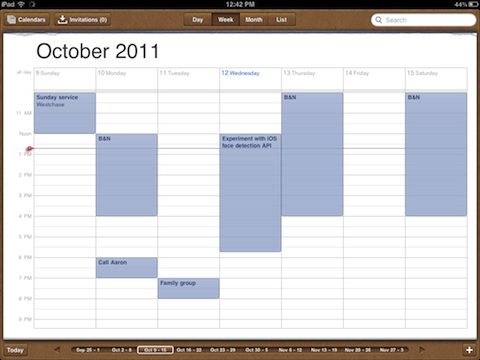
Thanks to a larger-size screen, iPad's Calendar App has always have a Week view. In iOS5, iPhone gains the similar capability, finally.


Week View on iPad.
If you hold your iPhone in the landscape position, you will see a brand new view with multiple days going across, and the hours of each day going downwards. You can pan the view sideway or vertically by touching, no surprise there. Other than presenting your schedule in a whole new perspective, the aforementioned tricks still apply here, meaning you can move a event to a different day just by long-pressing and sliding your finger. This is by far my most favorite new trick on the iOS5 Calendar App.

Week View on iPhone.

Update

More tricks have been discovered:

Wednesday, October 12, 2011

Upgrade to iOS 5 - with Cautions

By now you should have learned that iOS 5 is officially released. Without further ado, let's go over the steps to upgrade your iPhone / iPad / iPod Touch to the latest operating system:

  1. Make sure you remember your Apple account
    The account you use to purchase items from iTunes and the App Store will be your iCloud account. You will need that for iOS 5. Have it ready and it will come in handy later.
  2. Back up your device
    Connect your device to iTunes via USB and allow iTunes to make backups automatically.
  3. Install iTunes 10.5
    If you haven't already, download and install iTunes 10.5.
  4. *Important* Make some space on your device
    You should have copies of your music, movies and apps in your computer already. Make sure that's the case, and proceed to remove some content and make space available on your device, for reasons I'll explain later.
  5. Upgrade to iOS 5
    Click the "Check for Update" button in iTunes, which can be found on the device page when the device is connected. Follow the prompts, and let iTunes handle the rest.
  6. Set up iOS 5
    Once your device comes back to life, you will see some unfamiliar screens. No worries, they are simple steps for iOS 5 to set you up with iCloud services. All you need is your Apple account ID and password, and deciding on what services on iCloud you'd be using. These services are FREE!
  7. Refill your device
    If you followed my advice on the 4th step, now is the time for you to refill your device with content.
I encountered the problem of not having enough disk space during the upgrade process twice in the past: upgrading to iOS4, and to iOS5 Beta. Without going into details, let's just say that the experience wasn't pretty. Apparently, after a new version of OS is installed and running on your i-devices, the system will still need some time and (lots of!) space to reconfigure the apps and data. When space is low, the sight is ugly. While I think problems like this should not occur, I strongly suggest that you follow this advice.