Showing posts with label iPhoto. Show all posts

Monday, October 23, 2006

Easy Photo Sharing

What fun is there with keeping photos if you can't share them?

Thanks to Flickr, now every can share photos easily. Even if you do not have a Flickr account, you most probably have a Yahoo account, which can be used as your Flickr account right away. Goto flickr.com and set up your account now!

Easy uploading of photos

Thanks to the upload tool created by the Flickr team, now you can drag-n-drop your photos/albums from iPhoto and upload them to Flickr with just one click, literally! Get your free copy of Flickr Uploadr from here: http://www.flickr.com/tools/

Getting started

When you launch Flickr Uploadr, you will find that you can log on to your Flickr account directly from there. After logging in, you can start uploading photos immediately.

Uploading photos

You can simply drag the photos you like to share from iPhoto or Finder into the Uploadr. You can then add tags, descriptions to each photo if you like, or simply click the Upload button and your are done! There are plenty of features like restricting to only friends and families to view the selected photos... I'll leave those for you to figure out.
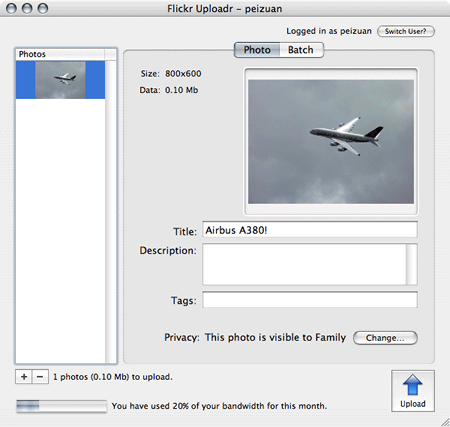
New photos are up on Flickr already. Snappy!

Yet another Mac tip is on the web!

Sunday, October 22, 2006

The Photo Slideshow

Your friend has just sent you a bunch of photos over the internet, and you are deciding to keep those that you like in iPhoto, and ditch the rest.

What is the most gratifying way to carry out the task, and to do it in style?

Set up a Slideshow

The photos you got from your friend are most probably wrapped in a zip file. After unzipping them, the photos can be found in a new folder.

Here is how you can easily set up a slideshow: select all the photos, and look for the "Slideshow" option in the Action menu.

Taking advantage of the Slideshow

The nice thing about setting up a slideshow, obviously, is allowing you to preview the photos in large format.

Seeing the photos in fullscreen.

Handy photo index let you see all the photos at once.

However, the neatest thing about Slideshow is how easily Apple has made it for you to add the photos that please you into iPhoto! As always, getting a job done on a Mac is just one click away. Notice the iPhoto button in the control pane? If you happen to like a photo and decide to keep it, all you need to do is to click on that button and it goes right into your iPhoto!

Yet another Mac tip is on the web!

Sunday, January 08, 2006

The Post-holiday iPhoto Dilemma

Photo taking with digital camera is fun until you start tagging the photos in iPhoto. There are two aspects of the job that I personally find painstaking:
  1. typing repetitive keywords into the titles and comments of a collection of photos
  2. moving focus/selection to another photo while manually adding comments to the photos

Adding keywords to a collection of photos

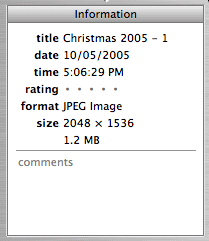
I always like to add descriptive keywords to a set of photos for archiving and quick searching purposes. For example, I would add "Christmas 2005" at the beginning of the titles of all the pictures I took in the last holiday season. To do this, the "batch change" function found in the "Photo" menu comes in handy.
  • Select a set of photos and click the batch change function.
  • In the new pop-up dialog, you can modify or append to the title, date and comments of the selected photos. If you are modifying the title, you can even tell iPhoto to add a number to each photo.

A number is added to the tail of the title "Christmas 2005". Numbers are added in ascending order, i.e. 1, 2, 3...

Moving between photos while tagging

When you are editing photo info manually, you would rather have your hands staying to the keyboard instead of moving over to the mouse just to navigate the photos.
  • To move to the next photo, click command+]
  • To move to the previous one, click command+[


Yet another Mac tip is on the web!