Showing posts with label iTunes. Show all posts

Wednesday, July 05, 2006

Video for iPod Made Easy

Ever since the video playing capability is added to the iPod, the truly convenient and easily accessible method for converting one's existing video files into iPod is simply, well, missing.

Then comes iTunes 6.0.5, in which Apple is finally compelled to make the long overdue feature standard and one-click away for the rest of us. Hooray!

At last, we can bypass Quicktime Pro which asks for a fee, or some obsured geeky (but powerful) open-source tools which can only be found by combing through google search results mediculously.

How does it work?

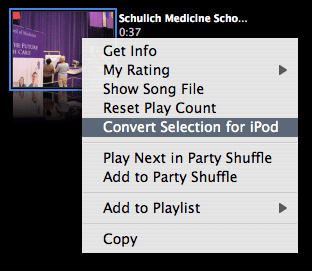
It is suprising easy. Take any video files you have added to your iTunes library and ctrl-click or right-click on it, there you will find the option "Convert Selection for iPod". Nifty huh?

If you haven't got your copy of iTunes updated, go get it now from Apple's iTunes page.

File format hazzle

What if you have video files in formats not supported by iTunes? Sorry, but you have no luck with this new feature. In this case, you probably want to try out the amazing ffmpegX.


Yet another Mac tip is on the Web!

Tuesday, February 28, 2006

Apple's February Special Event

It's only a couple of hours before Apple's February 2006 special event kick-starts. What will Apple reveal this time?

Rumors ranging from the new Intel Macs to the bigger-screen video iPod have been around recently. MacNify has never participated in any of these guess-works, with an exception this time.

So what is my take? I think it must be something to do with video. The rest will fit in around this theme. My focus is drawn to the recent acquisition of Pixar by Disney, which made Steve Jobs the CEO of Apple the biggest share holder of Disney. Although technically that has nothing to do with Apple, I am sure the collaboration between the Disney and Apple is too sweet a spot to not to be taken seriously by the two company. And having Steve sitting in Disney's board means something must happen.

So what will Apple do? Working around the theme of video, I guess Apple will start selling movies on its iTunes music store. However, that alone is not enough to draw people to buy movies online. To create a positive spiral effect like what iPod does to the selling of music on iTunes and vice versa, Apple has to roll out a new iPod to sell movies. That leads to the so-called 'true' video iPod, which is mentioned on Think Secret, with its argument further strengthen by a touch-screen patent filed by Apple. Apple may also introduce yet another Intel Mac with FrontRow, preferably the Mac Mini, so that people can purchase movies online and watch them directly on their big-screen TV.

Will my guess be accurate? We will find out soon enough.

Saturday, February 18, 2006

Converting Video Files for iPod

Got the latest iPod? What about the video contents?

The problem most iPod G5 owners face is not about where to find videos, but rather how to make their existing collection of videos play on the iPod. In this article we will talk about converting video files of almost any sort into files that play on the iPod G5.

Apple's Quicktime Pro is just one of the many tools available for converting video files into iPod-friendly formats. However, when talking about versatility, there is probably none that deals with so many different formats, including Real (.rm / .rmvb), as does ffmpegX. Plus, you can try it for free!

Where to get ffmpegX

You can download a copy of ffmpegX at http://homepage.mac.com/major4/download.html

Using ffmpegX to prepare iPod-friendly video

By its sheer power, ffmpegX simply overkills in serving our purpose. However, it does provide preconfigured settings for making iPod-friendly video so you don't have to worry about file format, bit rate, pixel count and all that jazz -- which means ffmpegX has got the most painstaking part of converting video formats covered!

Talking about ease of use, you practically need not know any better than how to drag-n-drop using a mouse to get job done. That alone makes ffmpegX a must-have. I don't mean to steal the thunder from ffmpegX's comprehensive "how-to's" on its own website, so I suggest you read the instructions there to find out how to operate the program.

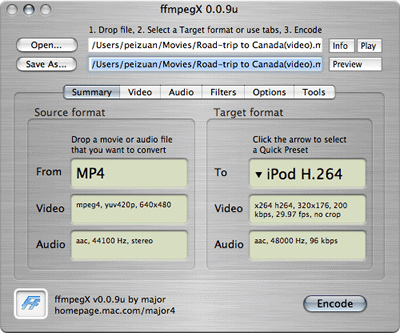
Screenshot of ffmpegX.
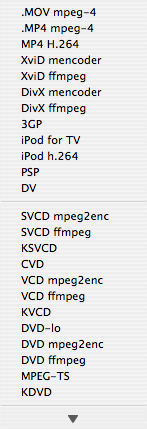
The preconfigured output formats in ffmpegX.
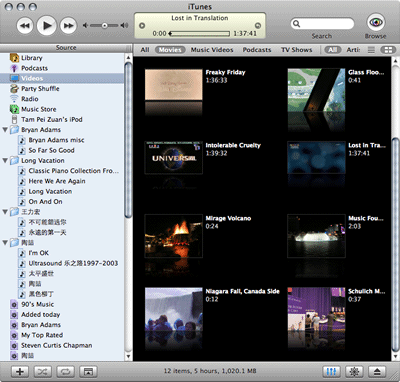
Screenshots of a iPod-friendly video. Image and sound is perfectly in sync, no problem!


Importing videos into iTunes

After you've got the new file produced by ffmpegX, drag-n-drop it into iTunes, so that it can be transferred to your iPod. If your iTunes is set to copy all imported files into iTunes's folder, you can remove the original one after iTunes has finished importing.

(See also: "Watch Podcast?")

Yet another Mac tip is on the web!

Sunday, December 18, 2005

How to Add Album Artwork to iTunes

An album artwork is a little piece of picture that accompanies a piece of song in iTunes. You can think of it as the beautiful CD cover you used to get in those days when you still bought CDs.
When will you get Album Artwork automatically?

When you purchase the entire album from the iTunes music store, you will realize that a picture, the CD cover, is added to each of the songs as well.

Another instant when you get album artworks automatically is when you subscribe to podcasts on iTunes' podcast directory. Usually a podcast's album artwork is just the podcast's logo.

How to add Album Artwork manually?

If you rip your own collection of CDs into iTunes, something all of us do, you have to find and add the album artwork yourself.

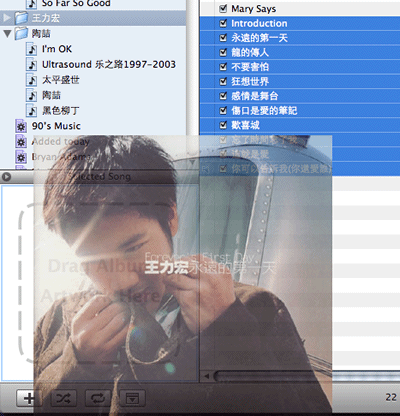
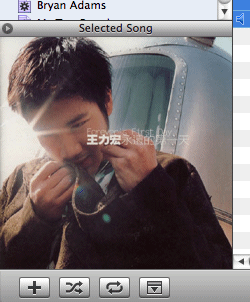
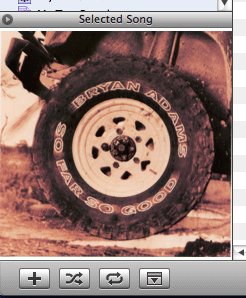
Adding a picture to a piece of music is easy. First make sure the album artwork window is set to display the "selected songs". Then, select a song in your library. Now if you have the CD cover scanned into a file, or you are able to find the CD cover from some website, you just need to drag and drop the file or the picture to the album artwork window.

Drag and drop a picture to the album artwork window.
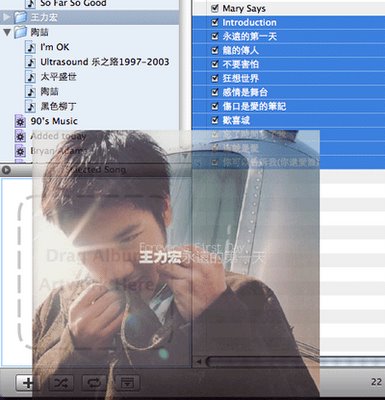
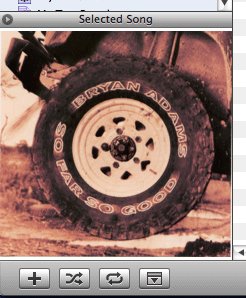
Album artwork is added successfully.
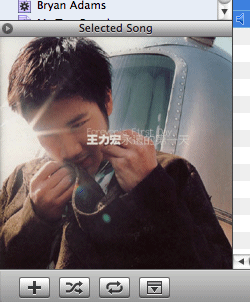
To add the same picture to a number of songs, e.g. all the songs of a single album, you can multiple-select the songs and repeat the same steps as mentioned.

Bring the Album Artwork with you on your iPods

Provided that your iPod has a color screen, or you own the ROKR, the album artworks will be transfer over as well when you sync your device with iTunes. No additional work is needed, just sync.


Yet another Mac tip is on the web!

Thursday, November 10, 2005

Perfecting Every Song: More Tips On Equalizer Presets

Among other things, what makes iTunes totally cool is its ability to assign an equalizer preset to every piece of music in your library. (What is an equalizer?)

When you can tell every piece of music to choose its own equalizer preset, every single tune sounds at its best for your ultimate listening pleasure. If you use the iTunes equalizer, you'll love this trick; if you have a HUGE music library, you'll love it even more.

Doing it one-by-one

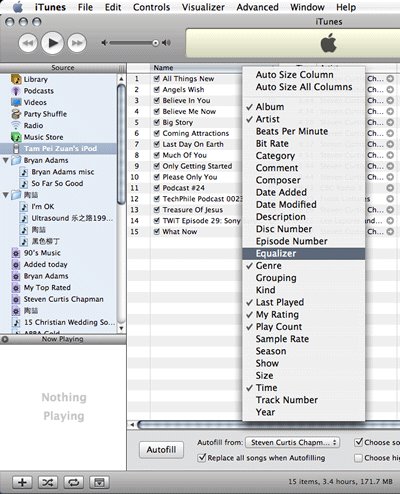
Do a right-click or ctrl+click on the column header of the iTunes table to reveal all the "song attributes" in a drop-down list. Check the 'Equalizer' in the list.
Now you will see a newly added column named Equalizer in the table. In each entry you can see a small button which looks like this. This button allows you to pull down the list of equalizer presets and choose one for that piece of song.

Doing it all at once

What if you have a genre album, and you just want to use the same equalizer preset for that particular set of songs? In this case you can do a batch change.

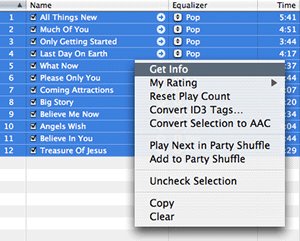
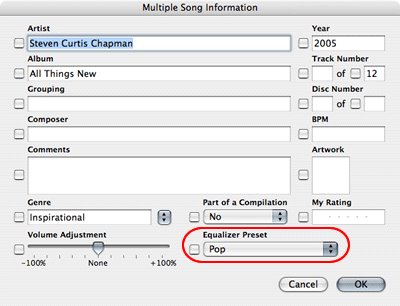
First, multiple-select the songs you want to change. Then right-click or ctrl+click the selected songs and choose 'Get Info' from the floating menu.
A new window containing all the batch-editable attributes of the selected songs will appear. Among other entries you might be interested in editing, the list of equalizer presets that you are looking for is sitting near the bottom-right corner. Choose an equalizer preset form the list, and the action will be propagated to all the selected songs.

Wednesday, November 09, 2005

Jazz Up the Tunes - Make Use of the Equalizer

Behind the simple interface of iTunes are tons of advanced features and settings that you can play around with to make things suit your tastes. Many of them have to do with managing the music library, but there is one that can truly make or break the music listening experience: the equalizer.

DJ-ing your way

Look for this button at the bottom-right corner of the iTunes window.

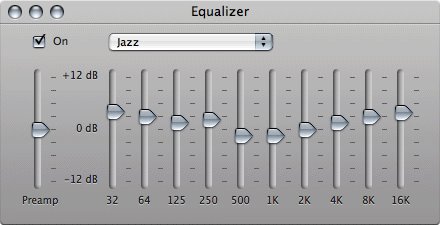
Clicking on this button will bring up the equalizer window. Check the 'On' box at the top-left corner to activate the equalizer. Reveal the drop-down list and you can see that iTunes is shipped with a good collection of equalizer settings called the presets.

Hear the difference

Let's start off by rolling a piece of your favorite music in iTunes. When the music is playing, try changing the equalizer to a few different presets. If you have not done this before, you'll be amazed at what a difference it could make with a proper setting of the equalizer.

Expanding the presets

Don't find any presets that satisfy your ear? Then make your own presets! First choose 'Manual' from the list, then adjust the slider of each frequency range until the music sounds right to you. To save the setting, choose "Make Preset..." from the preset list, give the new setting a name, and the new preset will be added to the list.

Getting the right equalizer setting for a piece of music is rather tricky. It requires a sensitive ear, a good taste, great patience, and some knowledge. Check out these cool sites for tutorials.

Managing the presets

To rename/remove a preset from the list, choose "Edit List..." from the preset list. A new window will appear and it is pretty much self-explanatory from there onwards, so we'll skip that part here.

Extra Tips

While you are playing around with the software audio equalizer, it is good to keep in mind that the final output of the music is depending on the types of speakers you are using with your Mac. Every single piece of speaker/earphone is engineered with a specific need in mind (or pure randomness due to poor engineering), therefore their performance at different frequency bands are not at all the same. The best (and a costly) way is to get a set of speakers that produces a wide range of frequency response and is at the same time unbiased towards a specific frequency range.

Yet another Mac tip is on the web!
Friday, October 21, 2005

Watch Podcasts?

Sure!

Podcast isn't just about web radio anymore. Technically speaking, the tricks that make audio podcasts tick apply to video contents too!

The video podcast that I watch is commandn, a weekly soft tech program hosted by Amber MacArthur and Mike Lazazzera. It is available on many podcast services. The best places to get it would be the podcast section on iTunes music store, Yahoo Podcasts, and of course the hosts' personal websites.

A ticket to Geek's Club...ok, maybe not

Sometimes tech news is useful even if you are not a geek and don't wish to be one. The knowledge may enable you to decide better when to buy your next tech toy, or whether to buy it at all! You don't have to go for tech enthusiast's type of thing, like TWIT aka This Week In Tech (one of my favorite podcasts too). On the other hand, soft tech news is fun, especially when it comes in video! That's where commandn fits in.

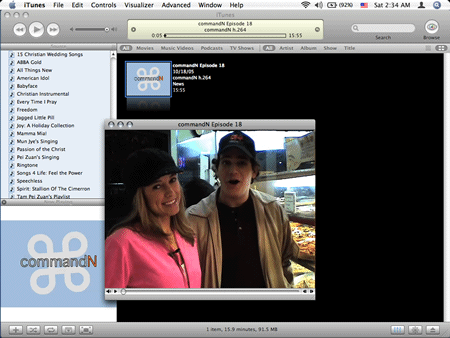
Watching commandn directly on iTunes.

Yet another Mac tip is on the web!