Sunday, October 23, 2005

The Mac Dating Tips

I'm not kidding. I was out today for a treasure hunting at the Apple store, and guess what I found? Apple fanboys seriously need dating tips.

I strolled to the new iPod for some hands-on experience with the video functionality before I could do a review on MacNify. Then there came this couple standing next to me checking out the same iPod. I couldn't help overhearing the guy saying, "just look at that, it is so cool and advanced. How could anyone not fall for it?". The girl, evidently clueless about what the iPod Video was all about, went "really?". So the guy repeated, "just look at that....(blah blah blah)", only with more efforts and zeal.

Okay, I get your point. But... come one, dude, you sound more like begging for permission to spend the bucks on the toy for yourself. Wanna impress her? Then shut up and buy one for her! My friend did that, I did that, and it worked!


Seriously, if iPod is so good that it's almost a sin to not let your loved one enjoy, then the best way to make her fall for it is to get her one. Her friends will be jealous of her, for both the iPod and the boyfriend.

Friday, October 21, 2005

Watch Podcasts?

Sure!

Podcast isn't just about web radio anymore. Technically speaking, the tricks that make audio podcasts tick apply to video contents too!

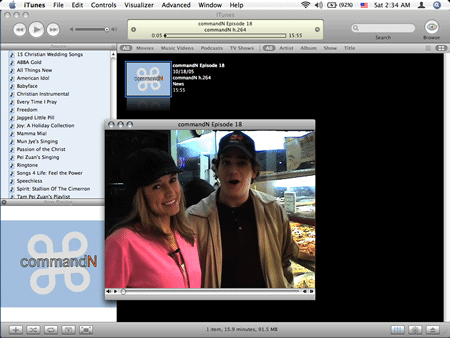
The video podcast that I watch is commandn, a weekly soft tech program hosted by Amber MacArthur and Mike Lazazzera. It is available on many podcast services. The best places to get it would be the podcast section on iTunes music store, Yahoo Podcasts, and of course the hosts' personal websites.

A ticket to Geek's Club...ok, maybe not

Sometimes tech news is useful even if you are not a geek and don't wish to be one. The knowledge may enable you to decide better when to buy your next tech toy, or whether to buy it at all! You don't have to go for tech enthusiast's type of thing, like TWIT aka This Week In Tech (one of my favorite podcasts too). On the other hand, soft tech news is fun, especially when it comes in video! That's where commandn fits in.

Watching commandn directly on iTunes.

Yet another Mac tip is on the web!

Tuesday, October 18, 2005

Best iPod+iTunes TV Ad, Ever!

iPod+iTunes TV ads have always been like nothing else we've seen on TV.

Just like what Steve Jobs loves to say, the best             just got better. Fill in the blank. In this case, it's "Ad".

The new iPod+iTunes TV ads features Eminem. Go check it out!

Some Screenshots


Yet another Mac tip is on the web!

Free Your Widgets From Dashboard (Part I)

How about placing your favorite widgets on your desktop?

With the launch of MacNify Widget, I'd love to unveil what is possibly the best trick on Dashboard.
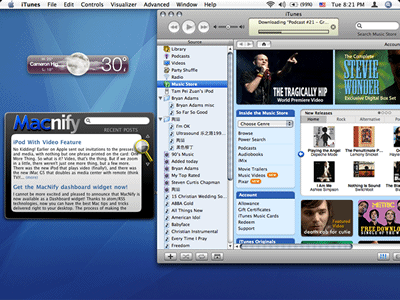
You can use widgets outside dashboard too!

Do Yourself Some UNIX Commands

  1. Fire up Terminal, and run the command: defaults write com.apple.dashboard devmode YES

  2. To verify the changes, run defaults read com.apple.dashboard devmode. It should return you a YES, which means that dashboard is running in development mode.

  3. Lastly, run killall Dock. This will kill the Dock...duh! But Mac will immediately start a new one and reload your dashboard as well.
*if you wish to restore to normal mode, simply type defaults write com.apple.dashboard devmode NO.

If There is Part I, There Must Be Part II

Just in case you find the UNIX commands too daunting, I have created a mini application to do just that for you. But you see, my current download bandwidth is all taken up by the MacNify Widget. Many readers have not been able to download the widget and I know it sucks. Therefore I really am not going to put more things there just to disappoint you. I'll leave the direct download of the mini app to Part II of this topic, when I finally find a host with generous bandwidth. Meanwhile, if you are keen on trying out the mini app, you can place a request at macnify@yahoo.com and I will send it to you. You are encouraged to share it with friends too!

Show me the Mm...magic!

After running the UNIX command or the mini app, you are good to go. Let's do the trick!
  1. Launch dashboard by clicking the dashboard toggle key (e.g. F12, depending on your settings in Preference->'Dashboard & Exposé').

  2. Click on any widget and drag a little. Here's the catch: while dragging, hit the dashboard toggle key once. WHALAH! Now the widget is on your desktop, and it stays on top of all windows, all the time!
*repeating step 2 with the widgets on your desktop will bring them back to dashboard.

Show it off

With this trick you can now use your favorite widgets without even launching the Dashboard, and perhaps wow a few friends who don't read MacNify!


p/s: the mini app is finally uploaded and ready for download.

Yet another Mac tip is on the web!