Wednesday, July 05, 2006

Video for iPod Made Easy

Ever since the video playing capability is added to the iPod, the truly convenient and easily accessible method for converting one's existing video files into iPod is simply, well, missing.

Then comes iTunes 6.0.5, in which Apple is finally compelled to make the long overdue feature standard and one-click away for the rest of us. Hooray!

At last, we can bypass Quicktime Pro which asks for a fee, or some obsured geeky (but powerful) open-source tools which can only be found by combing through google search results mediculously.

How does it work?

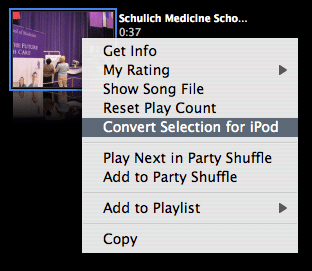
It is suprising easy. Take any video files you have added to your iTunes library and ctrl-click or right-click on it, there you will find the option "Convert Selection for iPod". Nifty huh?

If you haven't got your copy of iTunes updated, go get it now from Apple's iTunes page.

File format hazzle

What if you have video files in formats not supported by iTunes? Sorry, but you have no luck with this new feature. In this case, you probably want to try out the amazing ffmpegX.


Yet another Mac tip is on the Web!

Thursday, June 22, 2006

Safeguard Your Sensitive Data - Encrypted Disk Image

It is important to know that without encrypting your important files, they are easily obtainable by others who have access to your computer (e.g. when your laptop is stolen); and no, requiring password log-in to your user account does not protect your files from being pried open.

Fortunately, it is very easy to create an encrypted disk image in Mac OS X, which can be mounted to your system when you need it (think USB drive). When dismounted, it becomes just another file on your desktop. But it is strongly encrypted (meaning jumbled up with random data) such that others who obtain this file have no way to read what is inside, and your sensitive data are safe.

Creating an encrypted disk image

First, fire up the Disk Utility.
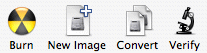
In Disk Utility, choose "New Image".
A dialog appears to let you customize the new image. Give it a name and a location to store on your harddisk. You must remember to choose "AES-128" in the Encryption option.
After you click "Create", another dialog will appear for you to create a password to protect the encrypted disk image. For good security, uncheck the "Remember password (store in Keychian)" option so that you leave no trace of your password in your computer. Give it a strong password that is hard to guess, then click 'OK'.

Using the encryted disk image


That's all you need to do! Now your new encrypted disk image is ready for use. Just double-click the disk image file, and after you typing in the password, it will be mounted to your system just like a removable drive.


Yet another Mac tip is on the web!

Wednesday, May 31, 2006

New MacNify Widget, more bugs solved

Version 1.2 of the MacNify Widget is now officially available for download on Apple's widget directories. Finally, the broken RSS link from the blog to the widget is restored! Enjoy!

Saturday, April 08, 2006

Windows, Anyone?

So it hasn't been any real a big announcement from Apple for quite some time. Try this: Apple is officially enabling running of Microsoft Windows XP natively on the new Intel Mac.

Boot Camp does it all

As Windows XP is built for the x86 architecture, it should naturally run well on the Intel Mac --that is if other compatibility issues like hardware drivers are overcome. That's precisely what Boot Camp (Beta) does.
Boot Camp is basically a one-stop-shop tool to help Mac users wishing to run Windows XP on Mac to get things done as easily as possible. It helps you create a new partition on harddisk to house Windows XP without affecting your Mac OS X, and even burns a CD containing the hardware drivers so that you can install them in Windows XP later.

When everything is set up properly, all you need is to hold the option key when starting the machine and the system will prompt you to choose which operating system to launch.

For a complete instruction on using Boot Camp, check out Apple's Boot Camp Guide

Alternatively, you can see a video demo of Boot Camp at You Tube

A real buzz generator

If you happen to scout around the Web for news and comments surrounding this new tool from Apple, you may find equally extreme yet completely opposite opinions, like the death of Mac OS X and the death of Windows. Take your pick.

Personally, I think this isn't really as big a change in the Mac world. First of all, those who enjoy Mac OS X will stick to Mac OS X, while those who have needed Windows for whatever reasons will still install a copy of Windows alongside Mac OS X -- only to bypass the Virtual PC for the first time in history. However, it sure will entice Mac users who happen to be active gamers to try out Boot Camp, as most of the major game titles are still Windows-only.

Security security

Mac is as safe as the Mac OS X can be. When comes to security with Windows, it doesn't matter that you are actually running it in your shiny Mac machine, worms targeting Windows will still creep in. Go ahead and install a copy of Windows if you may, but be sure you know what you are doing.


Yet another Mac tip is on the web!