Thursday, October 13, 2005

iPod With Video Feature

No Kidding!

Earlier on Apple sent out invitations to the presses and media, with nothing but one phrase printed on the card: One More Thing.

So what is it? Video, that's the thing. But if we zoom in a little, there weren't just one more thing, but a few more.

There was the new iPod that plays video (finally!), and there was the new iMac G5 that doubles as media center with remote (think TV)! We will talk on the new iPod this time.

iPod Video...?(See for yourself)

All of us will conveniently call it that way, although Apple seems to play down the idea of iPod Video even with the video capability added. Point to note: there is no official name as "iPod Video" whatsoever, just iPod. In a way, that's logical. Just like how iPod Nano completely replaced the iPod Mini, the so called iPod Video now completely replaced the original granddaddy iPod. In other words, video has become the standard function on iPod. So if you go for a full-size iPod from today onwards, you get to play video!

Some journalists, like Leo Laporte of TWIT, didn't believe Apple would do an iPod with video so soon given that they just released iPod Nano not long ago. But Apple did it anyway. It just goes on showing how distinct these two products and their target markets are that cannibalization isn't a concern that bothers Apple. In fact, Apple has to do it in order to create a product lineup with clear differentiations across the iPod familly.

Checklist

So it plays video alright, are there more to watch out for? Sure there are. First, it's thinner, 45% thinner than the previous full-size iPod. Than there's a longer battery life: the 30GB model plays audio for 14 hours, the 60GB one 20 hours. There are a few more interesting findings, like the mentioning of audio recording and video-out to TV in the spec list.

MacNify's take

It's too soon for a hands-on test even for MacNify at this moment, so there are no final words yet. It would be great if it plays HD video directly on TV through the AV cable. After all the screen on iPod is too small. As soon as it hits the local Apple store, I'm going to check it out!

The one important thing is, iPod with video is finally here! Rumor no more, deal with the fact, iPod wannabes!

Yet another Mac tip is on the web!

Tuesday, October 11, 2005

Get the MacNify dashboard widget now!

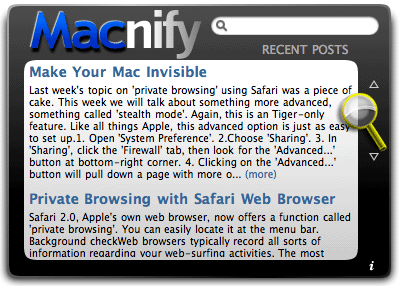
Screenshot of MacNify Widget
I cannot be more excited and pleased to announce that MacNify is now available as a Dashboard widget!

Thanks to atom/RSS technologies, now you can have the best Mac tips and tricks delivered right to your desktop. The process of making the MacNify widget has been a very fun and rewarding experience for me. I hope the widget will make it even easier for you to get all the must-have tips on MacNify. So download it for FREE now, and reap the benefits of MacNify, tips and tricks for Mac you ought to know!

For instructions on using the Macnify Widget, see here.


*To report bugs, contact macnify@yahoo.com


Version History

  • Version 1.1, released on 5 November 2005.
  • Version1.2 with fixed RSS feed.


Alternative Download URL

Besides getting it from Apple's website, you can get the widget here.

Note for using Dashboard Widget

Mac OS X 10.4 Tiger is required. If you're using Safari, click the download link. When the widget download is complete, show Dashboard, click the Plus sign to display the Widget Bar and click the widget's icon in the Widget Bar to open it. If you're using a browser other than Safari, click the download link. When the widget download is complete, unarchive it and place it in /Library/Widgets/ in your home folder. show Dashboard, click the Plus sign to display the Widget Bar and click the widget's icon in the Widget Bar to open it.

More Tips on Dashboard Widgets


Yet another Mac tip is on the web!

Sunday, October 09, 2005

Make Your Mac Invisible

Last week's topic on 'private browsing' using Safari was a piece of cake. This week we will talk about something more advanced, something called 'stealth mode'. Again, this is an Tiger-only feature.

Like all things Apple, this advanced option is just as easy to set up.
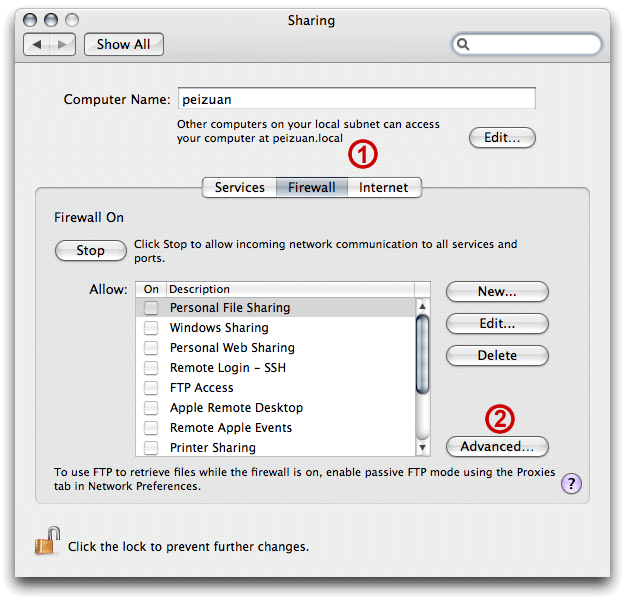
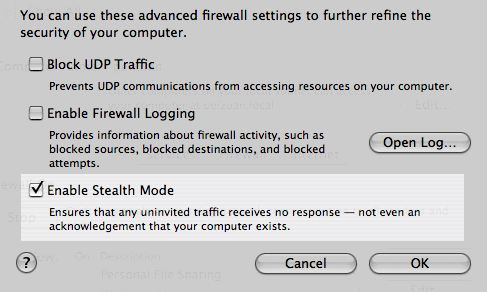
1. Open 'System Preference'.2.Choose 'Sharing'.3. In 'Sharing', click the 'Firewall' tab, then look for the 'Advanced...' button at bottom-right corner.4. Clicking on the 'Advanced...' button will pull down a page with more options. Check the box for 'Enable Stealth Mode', and you are done!

Stealth? As in Invisible?

That's right. With your Mac running in 'stealth mode', it will turn down any 'ping' or 'port scan' request from outside, so bad guys (and everybody else) just do not know you exist at all! Nifty, huh?

It's geeky, but what is 'ping' and 'port scan' anyway? Well, they are very legitimate network tools that every computer science student should know. Together, they can be used to find out whether your Mac is on a particular network, and whether you leave any doors wide-opened for bytes to sneak in. System crackers (casually known as 'hackers') usually start their attacks by pinging and port-scanning your computer. Once they plant some secretive codes inside your computer and make them run, your machine will become their faithful servant, not yours. I've seen it in action before.

For an outsider to run foreign codes on your Mac is tough, much tougher than on Windows. But if the code is bad-intentioned enough, or if you are careless enough, it could still happen. By setting up the 'stealth mode', you can avoid most casual attacks by being 'invisible'.

Fortify your network

This is beside the point, but have you also secured the wireless router in your home or small office network? Even if your Mac is in stealth mode on the network, you computer is still listed in the router's client table. So if your router is taken over, bad guys can still find you. So please, folks, crank up your router's security! (stop broadcasting SSID, setup MAC address filtering, firewall ... usual procedures, ya'know)

Yet another Mac tip is on the web!

Saturday, October 01, 2005

Private Browsing with Safari Web Browser

Safari logo
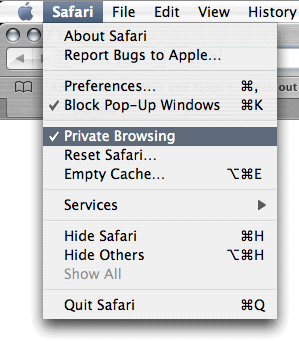
Safari 2.0, Apple's own web browser, now offers a function called 'private browsing'. You can easily locate it at the menu bar.

Select Private Browsing on Safari menu

Background check

Web browsers typically record all sorts of information regarding your web-surfing activities. The most common one is the 'history', which stores all the URLs that you have visited. Next is the so-called 'cookie', in which some websites leave markings for all kinds of purposes like identifying you as returning visitor or providing customized page responds. The third one is the 'cache', which stores web elements like html files and images on your disk. The purpose of the cache is to fake an impression of faster loading the next time you visit the same site, as some bytes are already on your computer.

What's the offer?

Okay, no more geek's talk. What you really need to know is that when you activate 'private browsing', Safari leaves NON of these trails on your computer. It makes sense in terms of personal security because many phishing attempts, whether to steal your precious identity or just to monitor what you do on the internet, are accomplished by sniffing through the cookie and cache. This feature also makes it impossible for people in-the-know to walk through your computer and obtain sensitive data like your online banking user ID.

Does that mean no one is watching?

If you are fancied with the idea that by not leaving any trail you are free to do anything without bearing the consequences, you should quit thinking that way now. Private browsing is NOT a tool for you to bypass the law, because whatever you do is still traceable by your internet service provider. It is only a tool that prevents malicious codes and people to steal your identity and privacy. You can also disable this option by means of Parental Control when you setup less-privileged account on your Mac.

Yet another Mac tip is on the web!